Check the messages you sent
See the messages Orio360 sent for you, and whether each one went out.
Who can do this: Owner and Manager
This is not in every plan. See Pricing.
Orio360 keeps a list of the messages it sends for you. It has bills sent on WhatsApp or by email, and re-order links. It also has the orders and price requests you sent to suppliers. Check the list when a customer says a message never came.
Find a message
- Go to Communications.
- Press Logs.
- Press a tab for the kind of message, like Invoices or Re-order Links.
- Choose a Channel: WhatsApp, Email or SMS.
- Choose a Status, like Failed.
- Look at the Status of each message in the list.
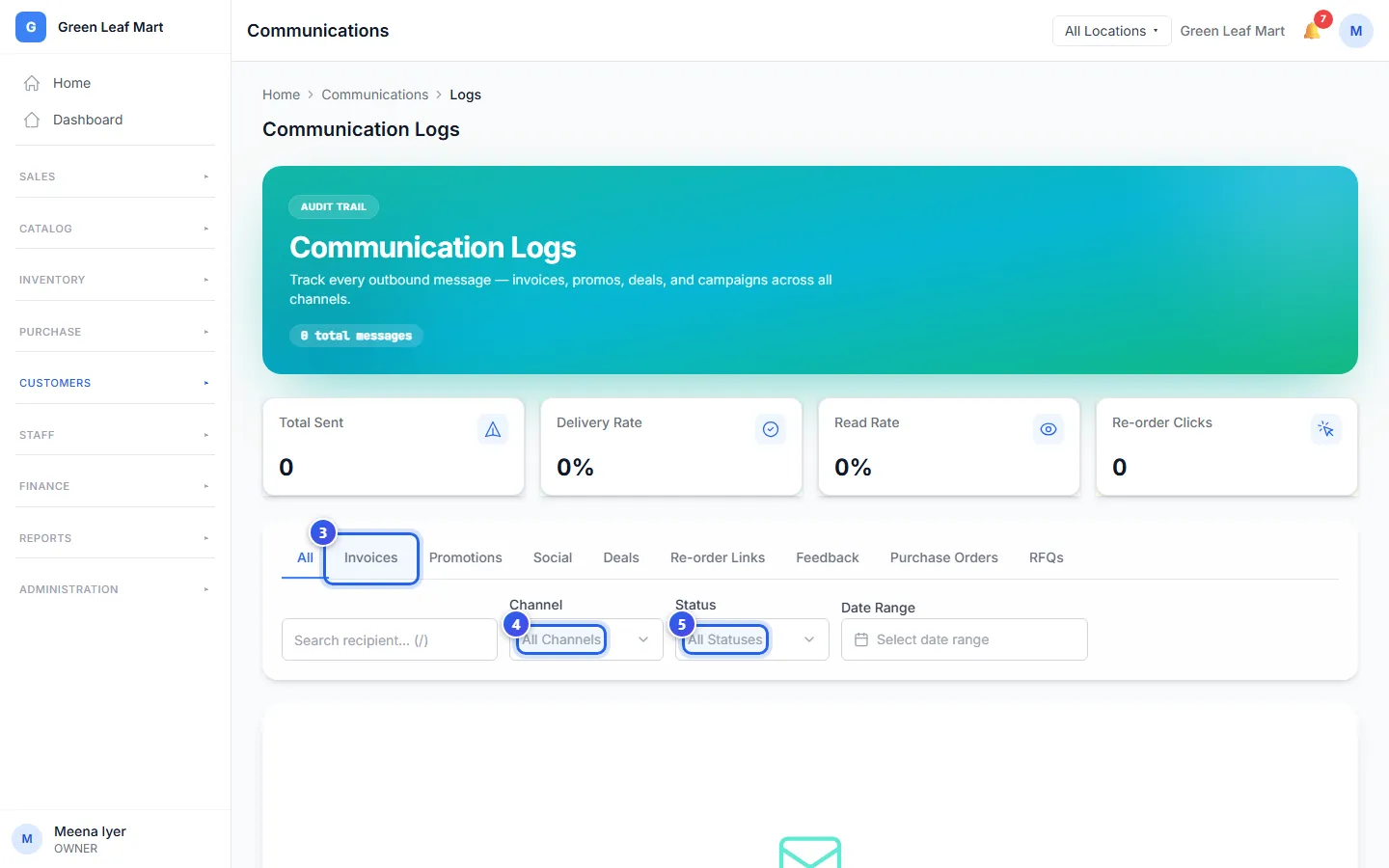
To look at a few days only, choose them in Date Range. To find one customer, type their phone number or email in the search box.
What each status means
- Queued: the message is waiting to go out.
- Sent: the message left Orio360.
- Delivered: the message reached the phone or the inbox.
- Read: the customer opened the message.
- Failed: the message did not go out. Check the phone number or the email address. Then send it again.
The cards at the top count your messages. They show Total Sent, Delivery Rate, Read Rate and Re-order Clicks.
The Overview page
The Owner also sees Overview under Communications. It shows Messages Today, the Failed count and your latest messages. Press WhatsApp, Email or SMS to see one kind only.
Related help
Send a bill on WhatsApp or by email
Send a copy of a paid bill to your customer on WhatsApp or by email.
Send a re-order link
Send a customer a link to order the same items again from an old bill.
On some plans
Read customer feedback
See the stars and comments your customers give, and deal with each poor rating.
On some plans
Still need help?