Make a discount voucher
Make a voucher code that takes money off a bill.
Who can do this: Owner and Manager
This is not in every plan. See Pricing.
A voucher is a code that takes money off a bill. Print it on a card, or tell your customers the code. The cashier types the code at the till.
Make the voucher
- Go to Vouchers.
- Press + Create Voucher.
- Keep Auto-generate code on, and Orio360 makes a short code. To use your own code, turn it off and type it in Code.
- Under Discount Type, choose Percentage off or Flat ₹ off.
- Type the Percentage or the Amount.
- Type a Min Order Value if the bill must be big enough. Leave it empty for any bill.
- Check the dates in Valid From and Valid Until.
- Press Create Voucher.
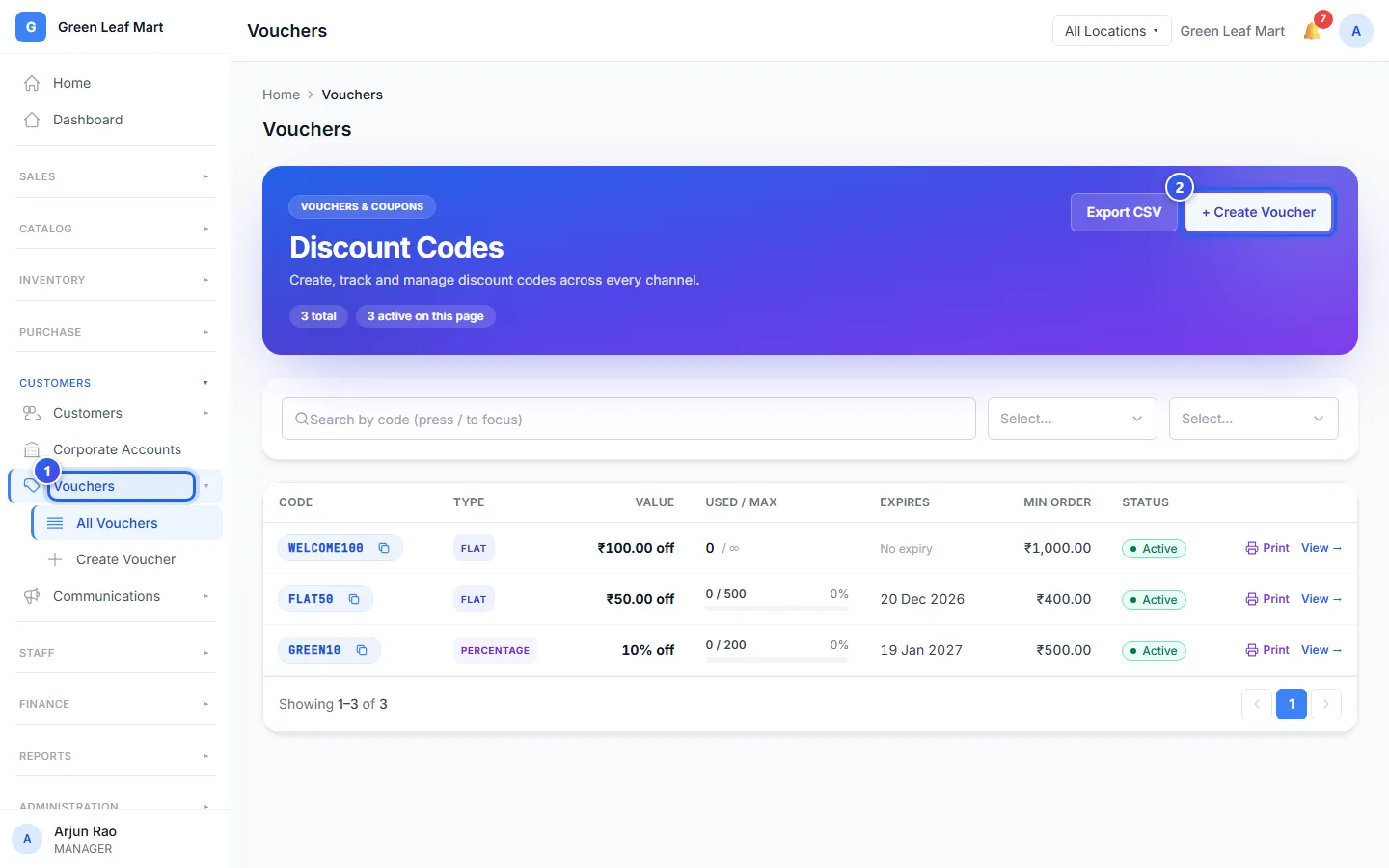
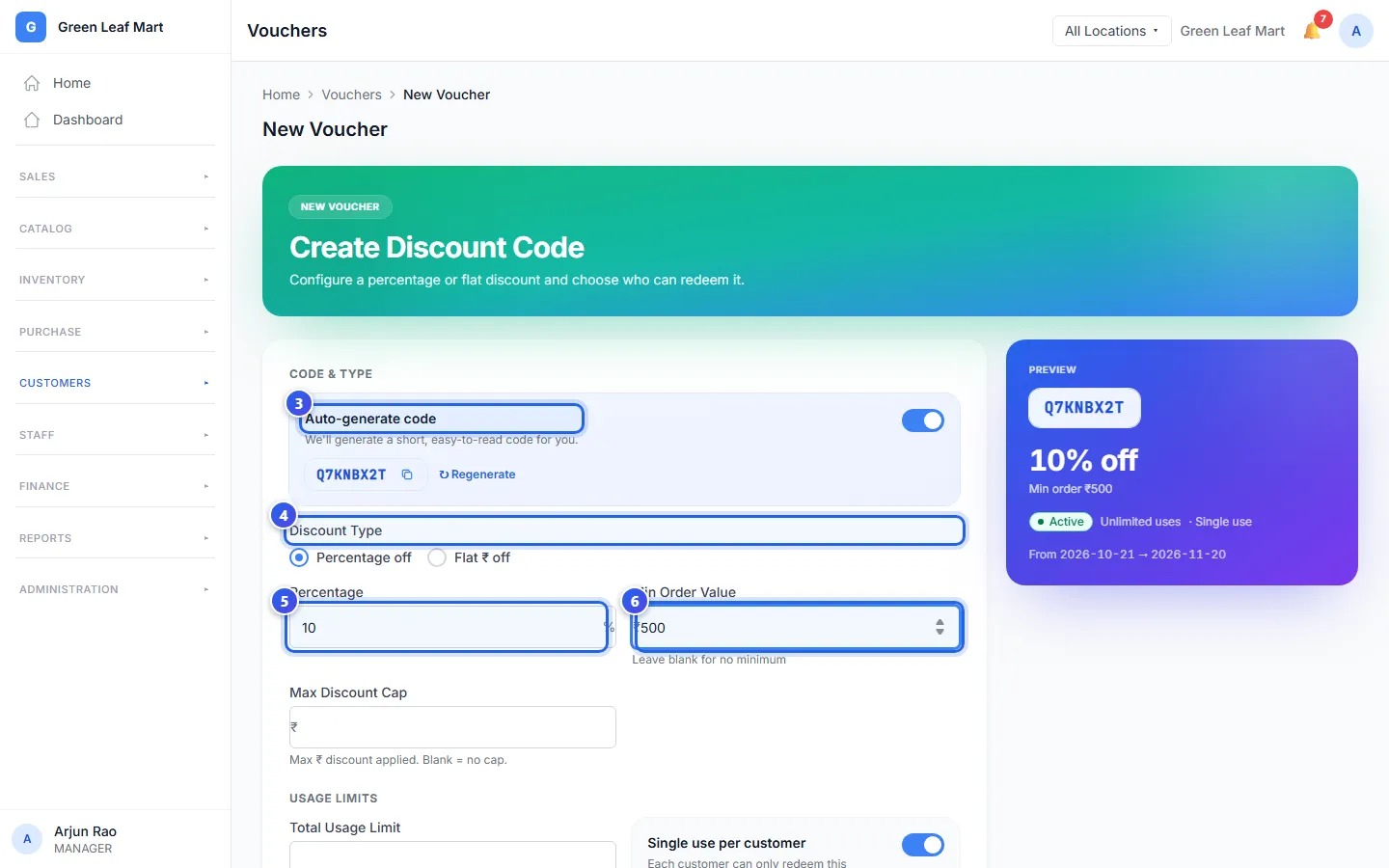
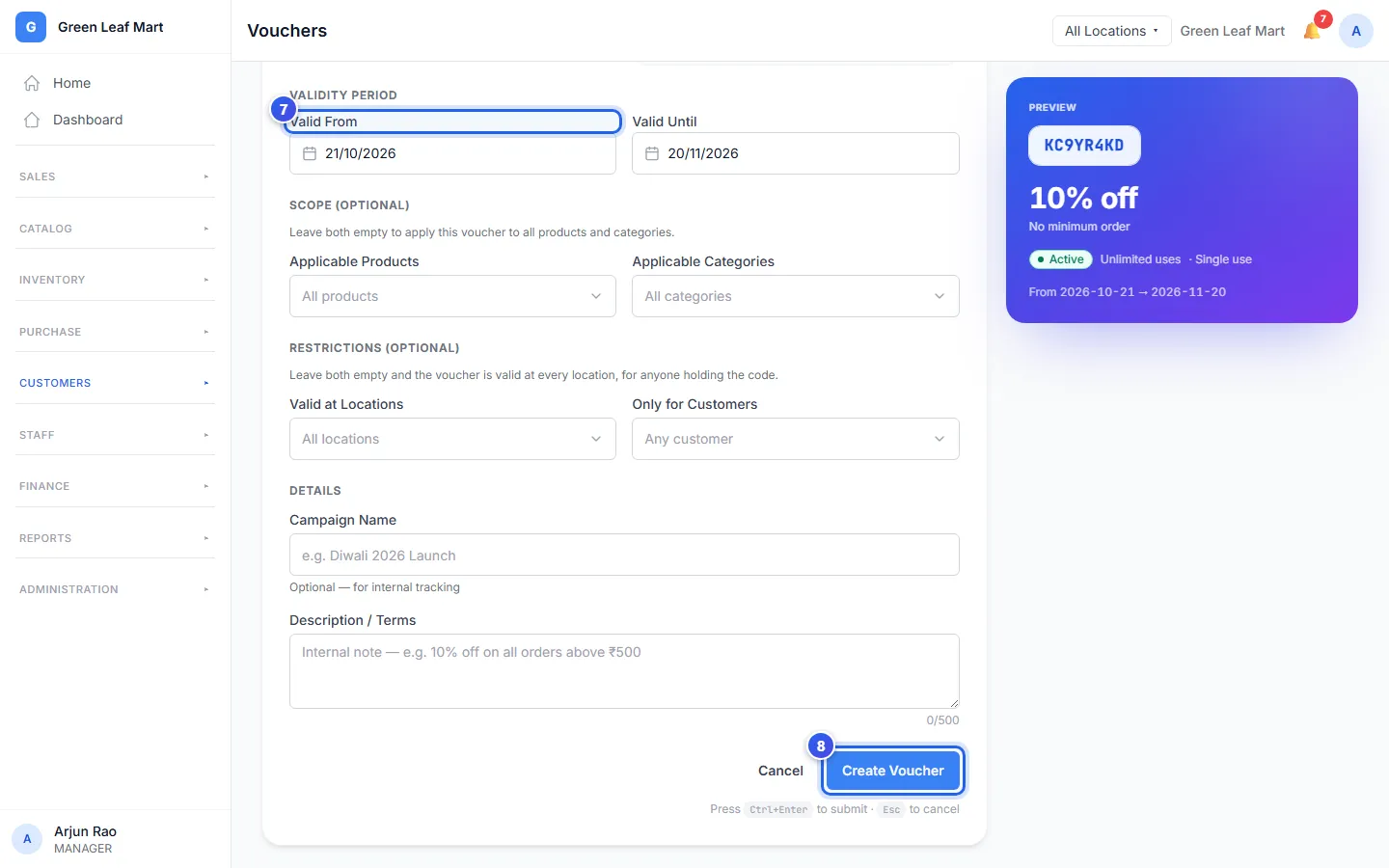
As you type, the Preview card shows how the voucher looks. Orio360 saves the voucher and opens it.
More choices
- Max Discount Cap is the most money a percentage voucher can take off.
- Total Usage Limit is how many times the code works in all. Leave it empty for no limit.
- Single use per customer lets each customer use the code once. It starts turned on.
- Applicable Products and Applicable Categories keep the voucher to those items. Leave both empty for everything.
- Valid at Locations and Only for Customers choose the shops and the customers that can use it.
After you make it
Press View next to a voucher in the list. You see how many times it was used, the money it took off and each bill. Press Print voucher to print a card for a customer. Press Deactivate to stop the code. Only the Owner can Delete a voucher.
Related help
Use points or a voucher on a bill
Let a customer pay with loyalty points, or take money off with a voucher code.
On some plans
Give a discount on a bill
Take money off one item or the whole bill before the customer pays.
See your best and quiet customers
Find customers who buy often and those who have not come back for a while.
Still need help?