Take back items from a customer
Make a return for some or all of the items on a paid bill.
Who can do this: Owner and Manager
A customer brings back an item from a paid bill. You make a return. Orio360 puts the items back in stock. It also makes a credit note for the money.
Make a return
- Find the paid bill and open it. See Find and print a past bill.
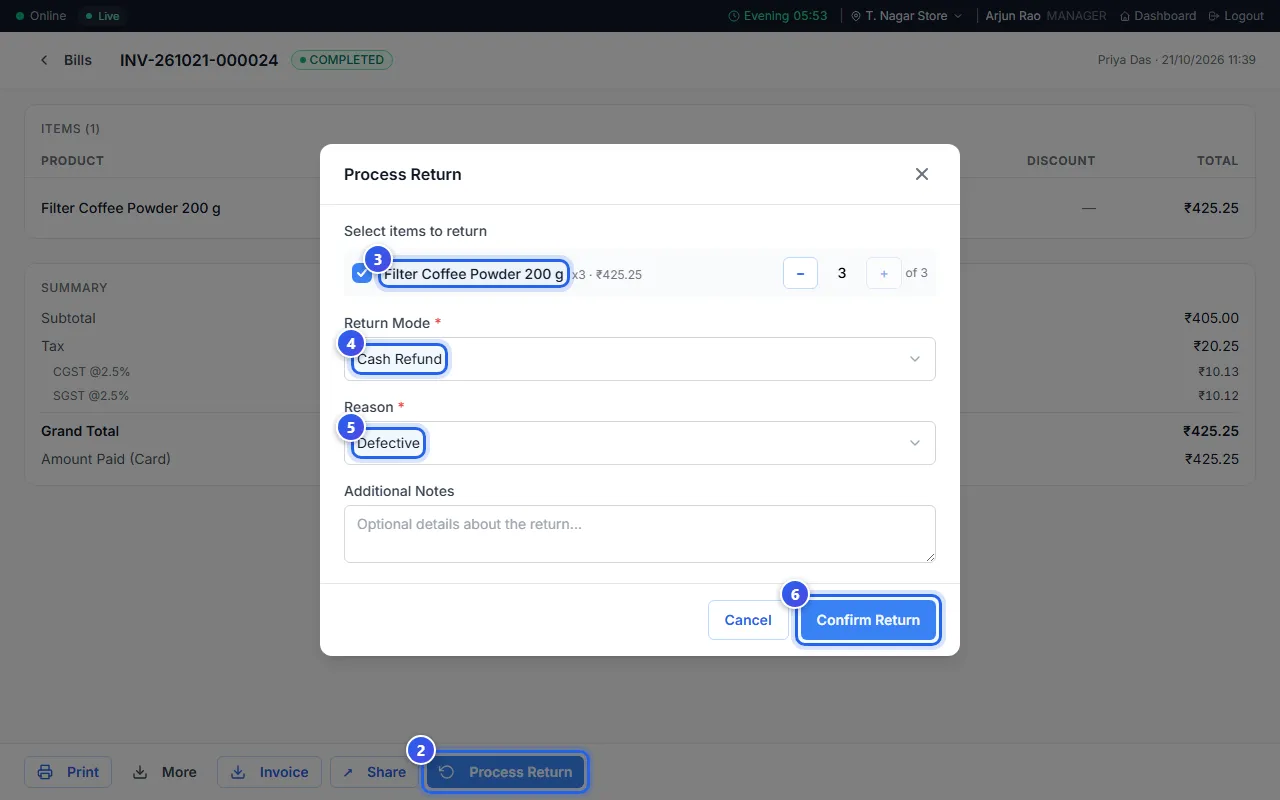
- Press Process Return.
- Press each item the customer brings back. Use − and + to change how many.
- Choose how to pay back in Return Mode.
- Choose why in Reason, like Defective or Wrong Item.
- Press Confirm Return.
The page says Return processed successfully. The return now shows under Returns against this bill.
The return modes
- Cash Refund — you give the money back in cash.
- Store Credit — the customer gets a credit note with a code, like CN-AB12CD. They use it to pay next time, within 1 year.
- Exchange — the customer also gets a credit note. They use it to pay for the new items.
- Payment Reversal — you send the money back the way the customer paid, like by card.
To use a credit note, press Credit Note in the Payment window. Then type its code.
Limits on returns
- You can make a return only for a short time after the sale. This is usually 7 days. After that, Process Return is grey.
- Some items may not be returnable at all.
- A big return may need a Manager to say yes. Then the page says the refund waits for approval.
Related help
Still need help?