Set your return policy
Choose who can take items back, and when a big return must wait for a Manager.
Who can do this: Owner
When a customer brings an item back, your staff give them a credit note. This page sets who may do that. It also sets when a big return must wait for a yes. Only the Owner can change it.
Choose who can take items back
- In the Administration group, press Settings, then Return Policy.
- Choose who can give credit notes: Owner only, Manager and above or Any cashier.
- Type an amount in Approval threshold (₹).
- Press Save changes.
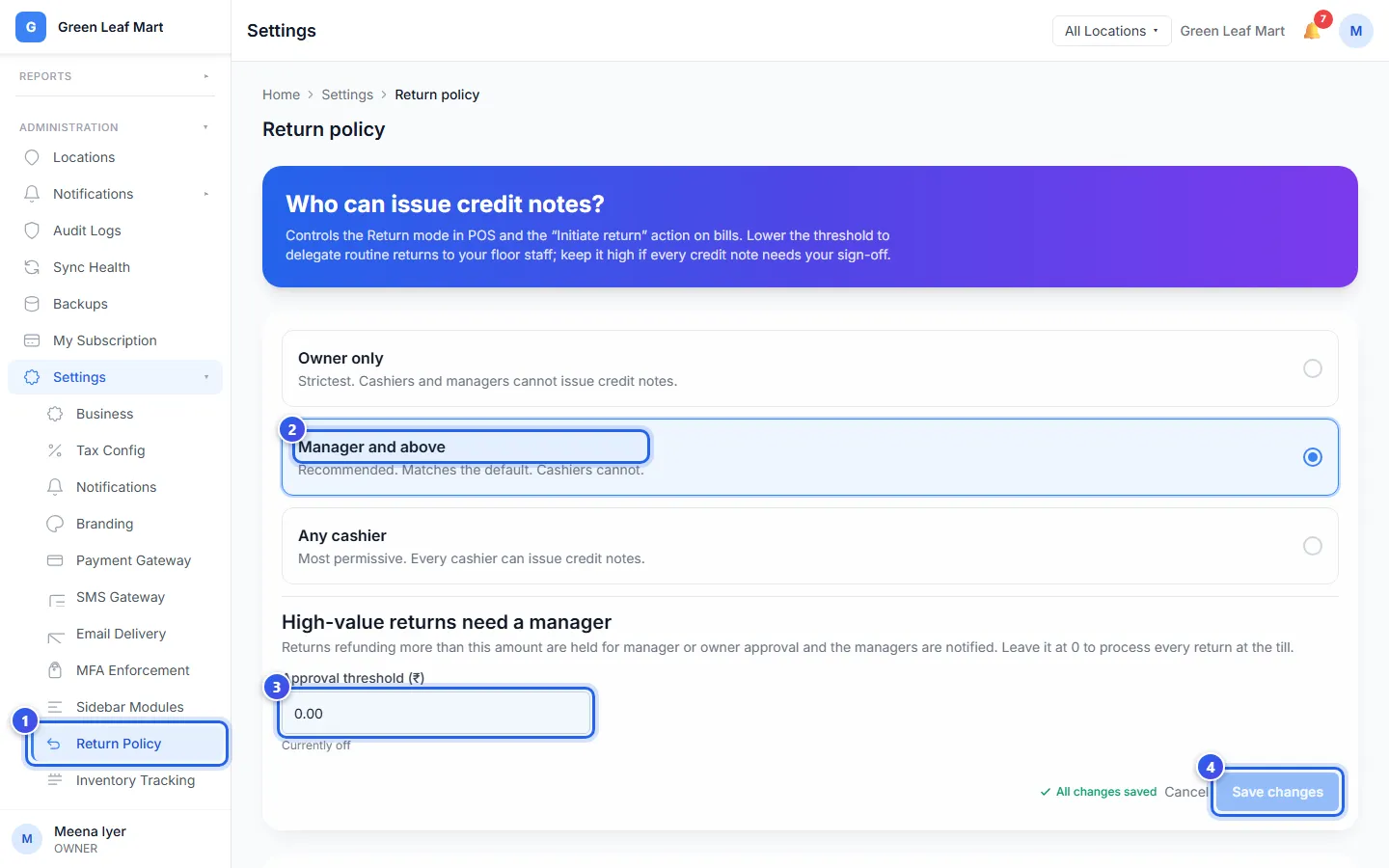
Save changes turns on when you change your choice or the amount. Once you save, All changes saved shows next to Cancel.
Orio360 starts with Manager and above. Choose Any cashier if your cashiers take back items every day.
A return for more than the amount in step 3 waits for a Manager or the Owner to say yes. Orio360 tells your Managers about it. Type 0 to let the till finish every return at once.
Set rules for one category
Some items should never come back, like food. Others may come back for a few days only. You can set this for each category.
- Scroll down to Category rules.
- Type the number of days in Return window (days).
- Type an amount in Approval threshold (₹), or leave it empty.
- Press Save on that row.
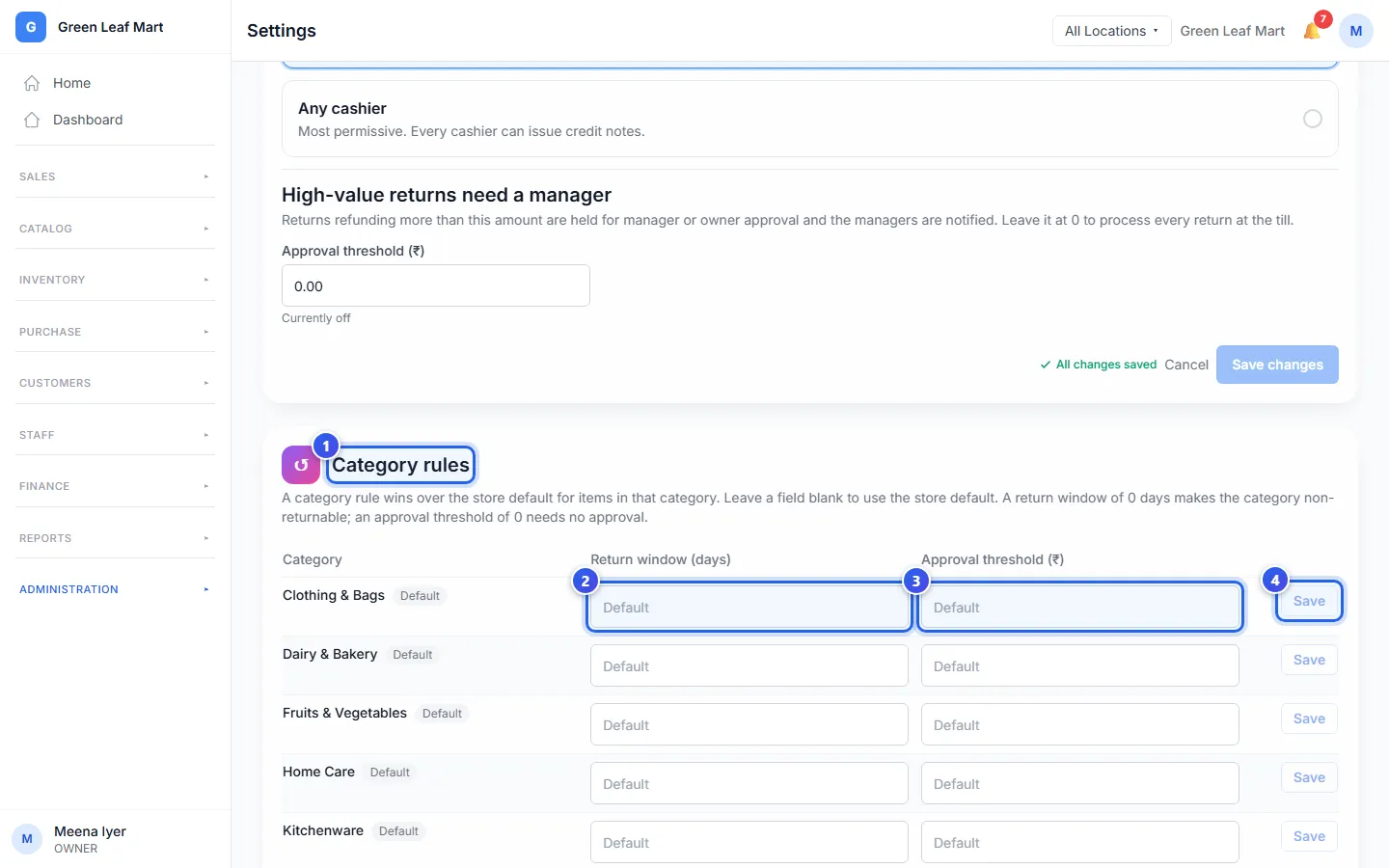
Type 0 days when items in the category can never come back. Type 0 as the amount when returns in it never need a yes.
A box you leave empty uses the rule for your whole business. A category with its own rule shows Custom. The others show Default.
Related help
Still need help?