Read and choose your notifications
See your alerts and choose which ones you want to get.
Who can do this: Owner, Manager and Cashier
Orio360 sends you alerts about your business. It tells you when stock runs low, or when a request waits for you. The bell at the top shows how many alerts you have not read yet.
Read alerts in the admin app
- Press the bell at the top of the page. The Notifications page opens.
- Press Unread to see only the alerts you have not read.
- Press a kind of alert, like Low stock, to see only that kind.
- Press Mark All Read when you have read them all.
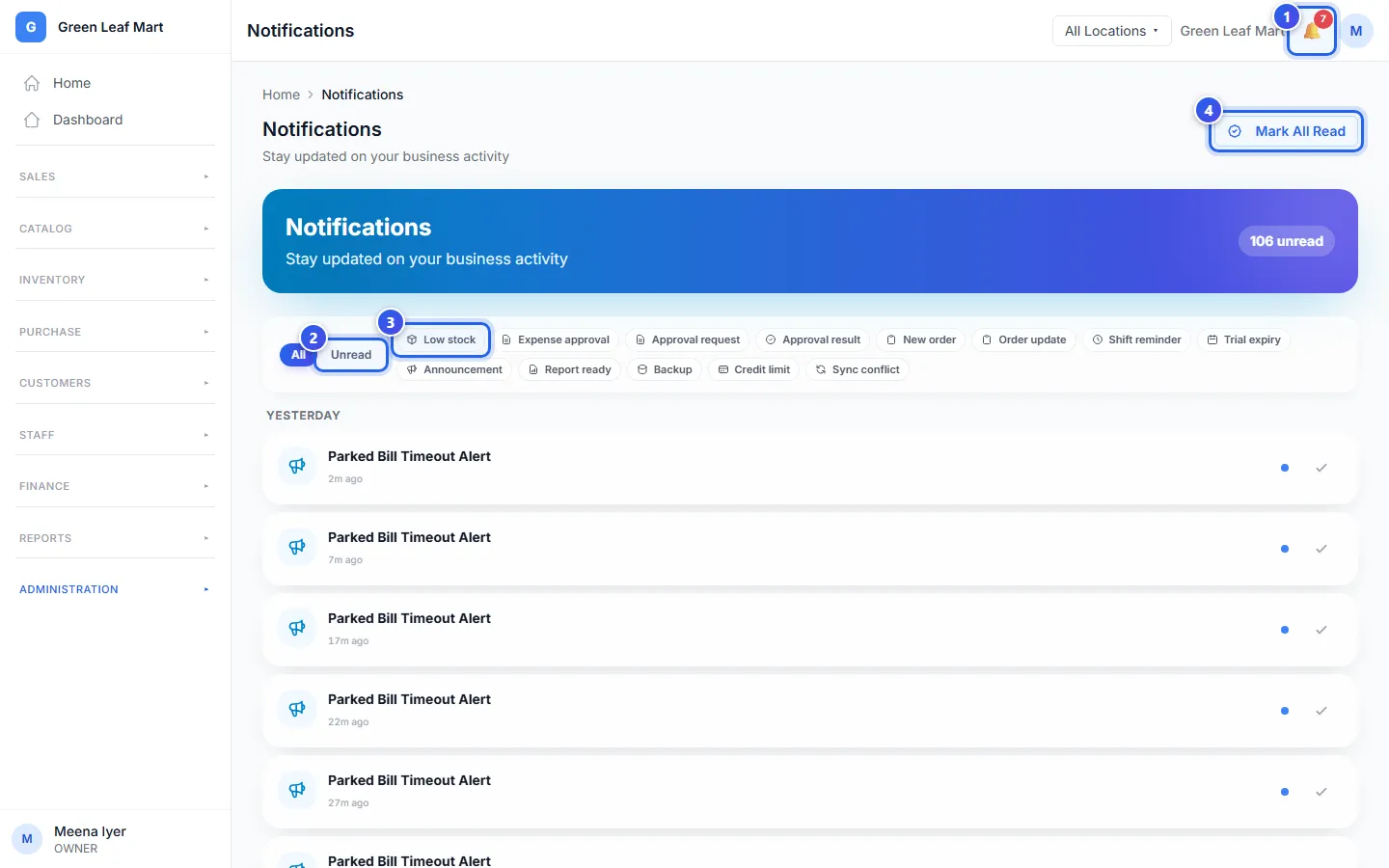
To mark one alert as read, press the tick on its right. To see every kind again, press Clear.
Read alerts at the till
- In the POS app, press the bell at the top.
- Read the list. The newest alerts are at the top.
- Press Mark All Read.
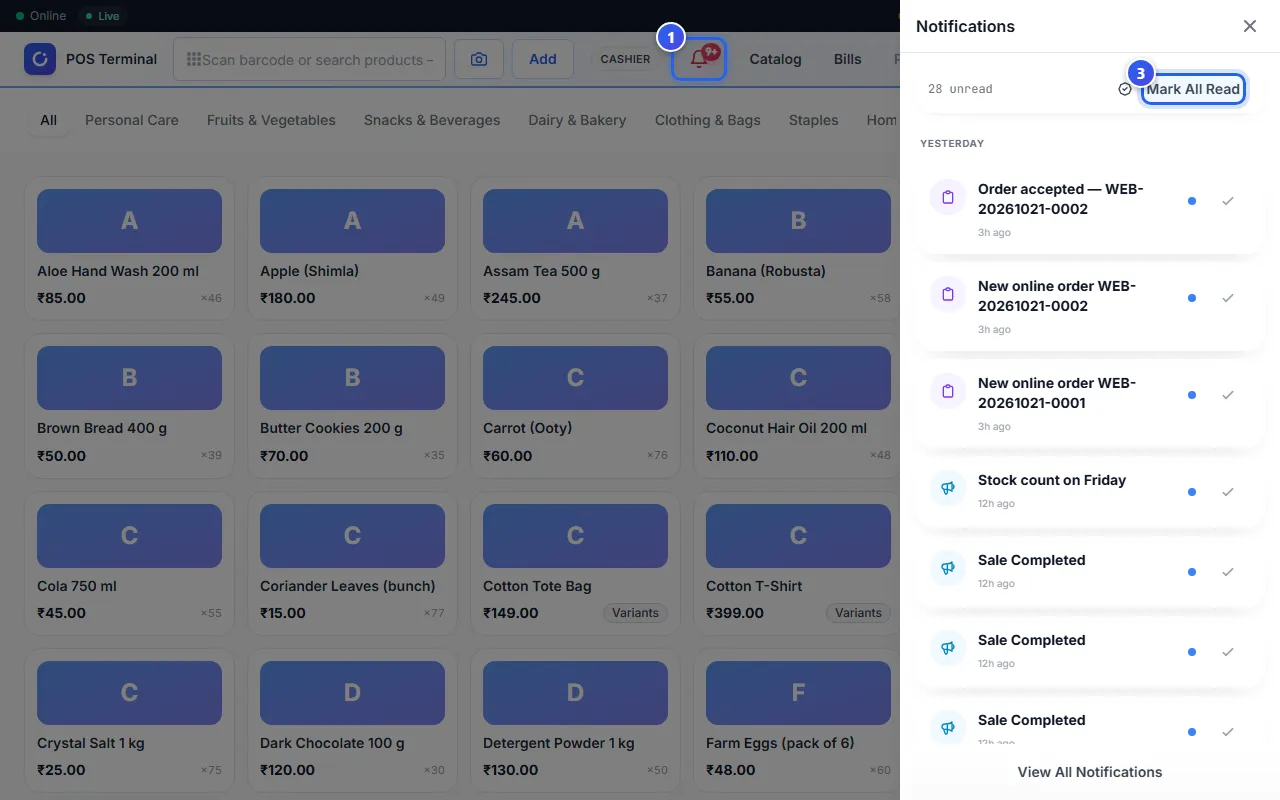
Press the cross at the top of the list to close it.
Choose how alerts reach you
Every alert shows in Orio360. You can also get alerts by email, SMS or WhatsApp, or as a pop-up on this computer.
- In the Administration group, press Settings, then Notifications.
- Under Delivery Channels, turn on each way you want: Email, SMS, WhatsApp or Browser Push.
- Under Per-event overrides, choose the ways for each kind of alert.
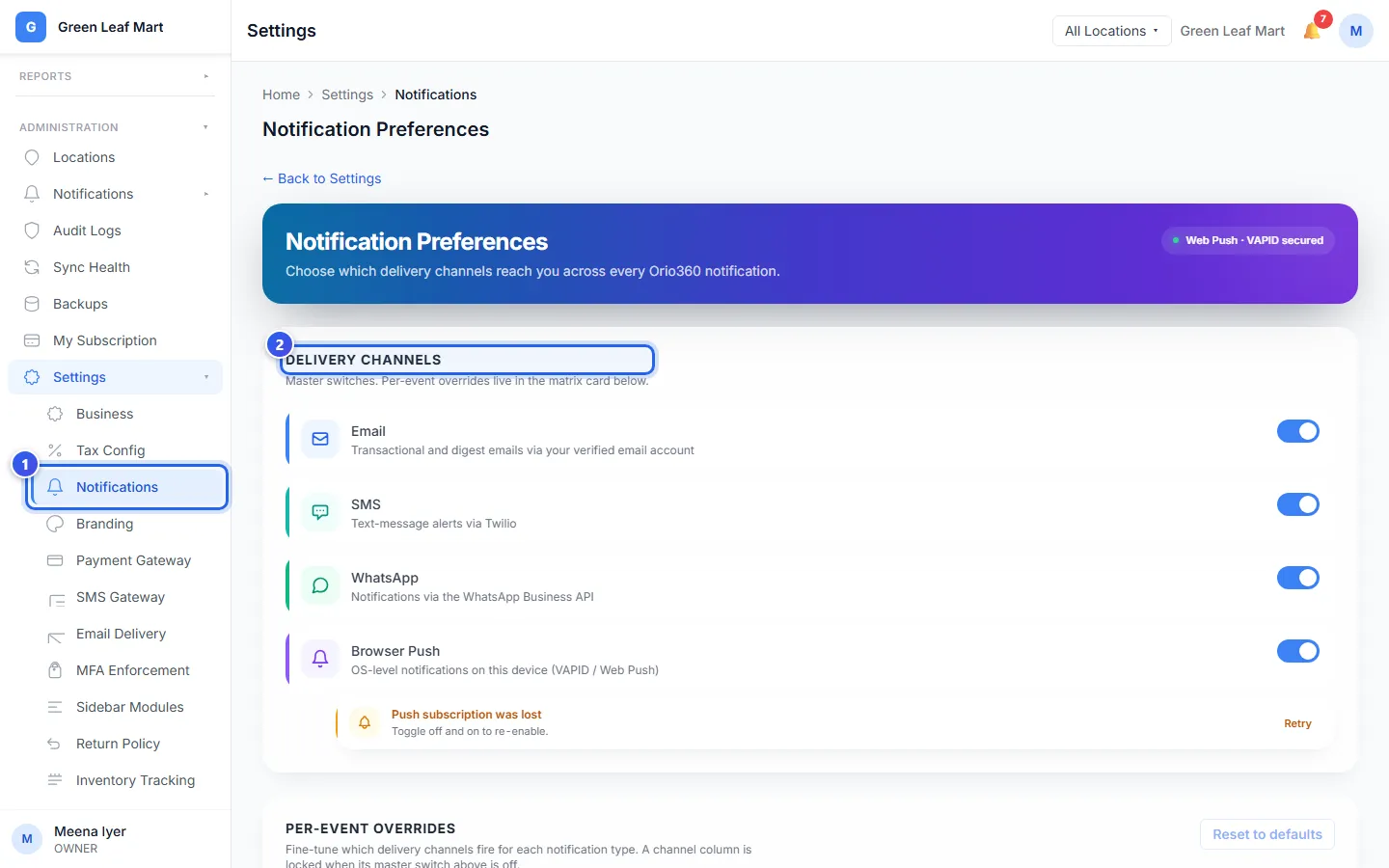
Each change saves at once. To undo your choices in step 3, press Reset to defaults.
Related help
Still need help?