Set up automatic discounts
Make discount rules that the till uses on bills by itself.
Who can do this: Owner
A discount rule takes money off items for you. When a bill has an item that fits the rule, the till takes the discount off by itself. Quotes get it too. Only an Owner can make discount rules.
Make a discount rule
- In the menu, open Sales and press Discounts.
- Press New Discount Rule.
- Type a name in Rule Name, like Monsoon Kitchen Sale.
- Keep Item-Level in Rule Type.
- Choose Percentage (%) or Flat Amount (₹). Then type the amount in the box next to it.
- Choose items in Applicable Products or Applicable Categories. Leave both empty for all items.
- Choose the Start Date and the End Date.
- Press Create Rule at the bottom.
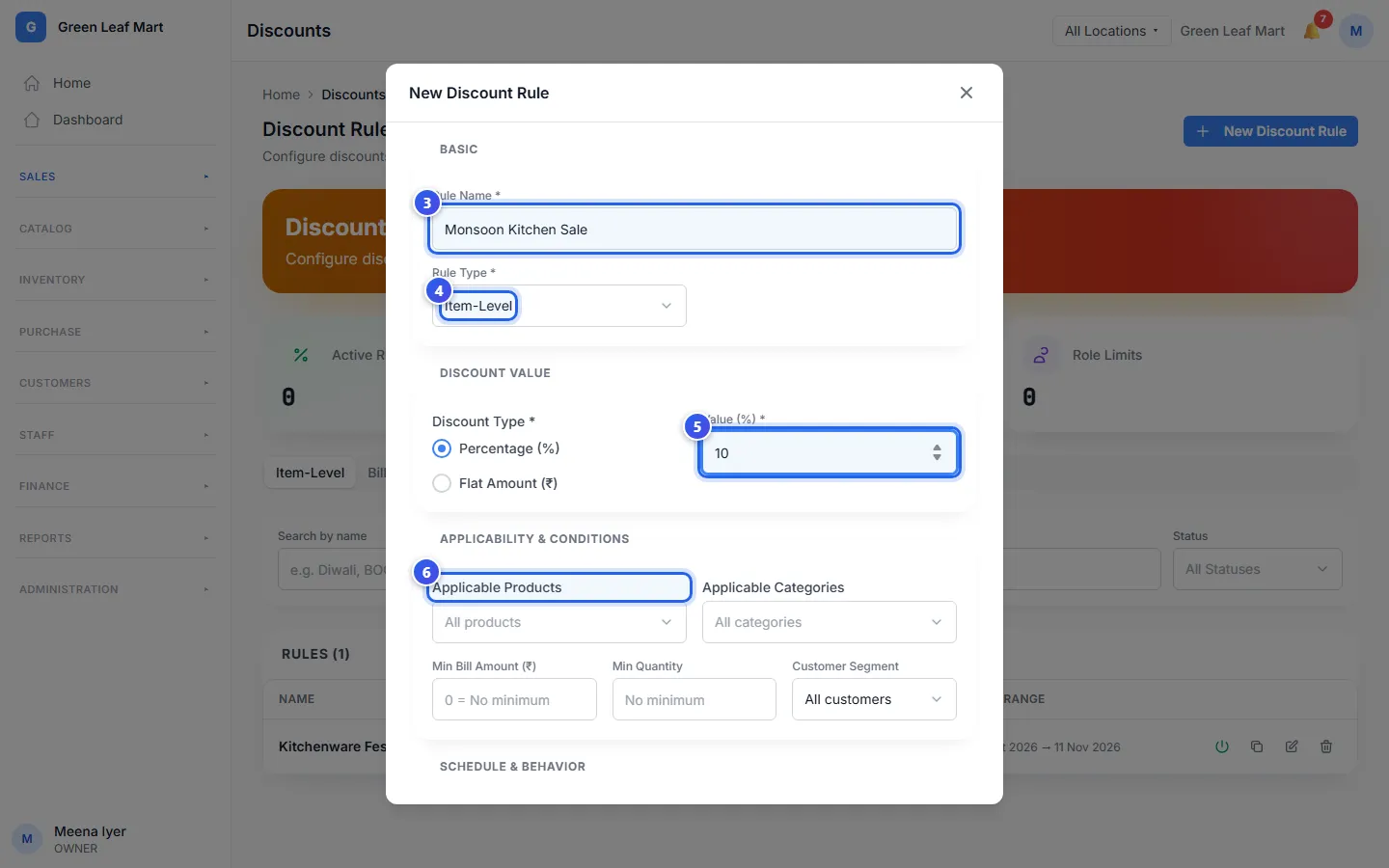
A flat amount comes off the whole line, not off each piece. Want the rule only at some hours? Fill in Start Time (optional) and End Time (optional). Want it only on some days? Turn on Restrict to specific days, and press the days.
If more than one rule fits an item, the biggest discount wins. A rule never takes the place of a bigger discount that the cashier gave by hand.
Turn a rule off or on
In the list, each rule shows ACTIVE, SCHEDULED, EXPIRED or DISABLED. A rule that starts later says SCHEDULED. Press the power button on a rule to turn it off or on. The copy button makes a copy of the rule, and the pencil button changes it.
Set the most each role can give
- Press Role Limits.
- Type the most a role may take off a bill in Max Discount (%).
- Press Save Configuration.
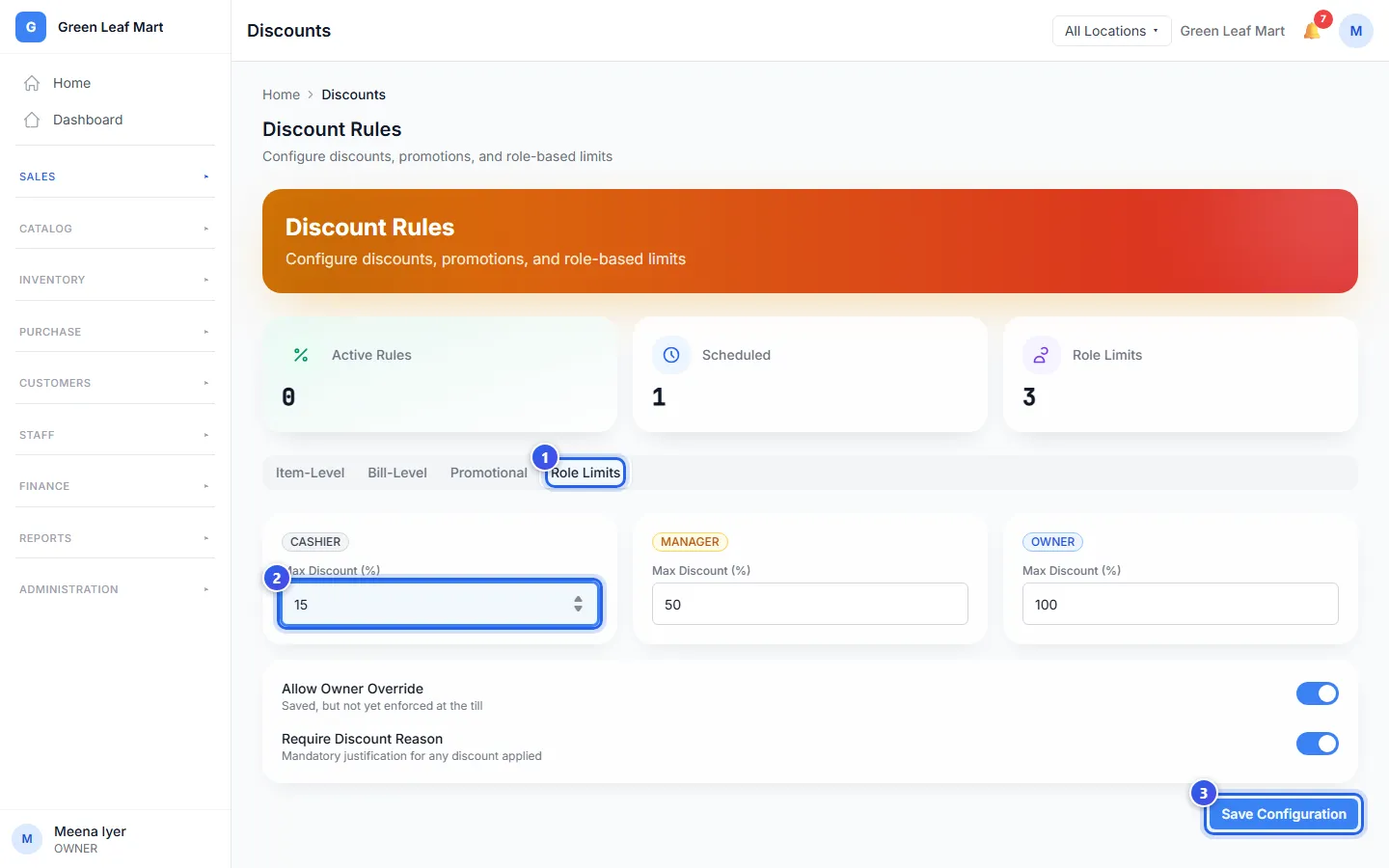
A Cashier who goes over the limit must ask a Manager or an Owner to say yes. See Give a discount on a bill.
Related help
Still need help?