Set up the till and printer
Connect your receipt printer and choose how the billing screen works on this till.
Who can do this: Owner, Manager and Cashier
Each till keeps its own settings. Set up the receipt printer once on each till. You can also choose where the bill sits on the screen, and how the payment window opens.
Connect the printer
A Manager or an Owner does this. A Cashier can see the printer, but cannot change it.
- On the billing screen, press Settings.
- Stay on the Devices tab.
- Under Connection Type, choose USB or Network.
- For a network printer, type its IP Address and press Connect. For a USB printer, press Pair Printer and choose your printer.
- Choose the Paper Width of your paper roll.
- Press Test Print.
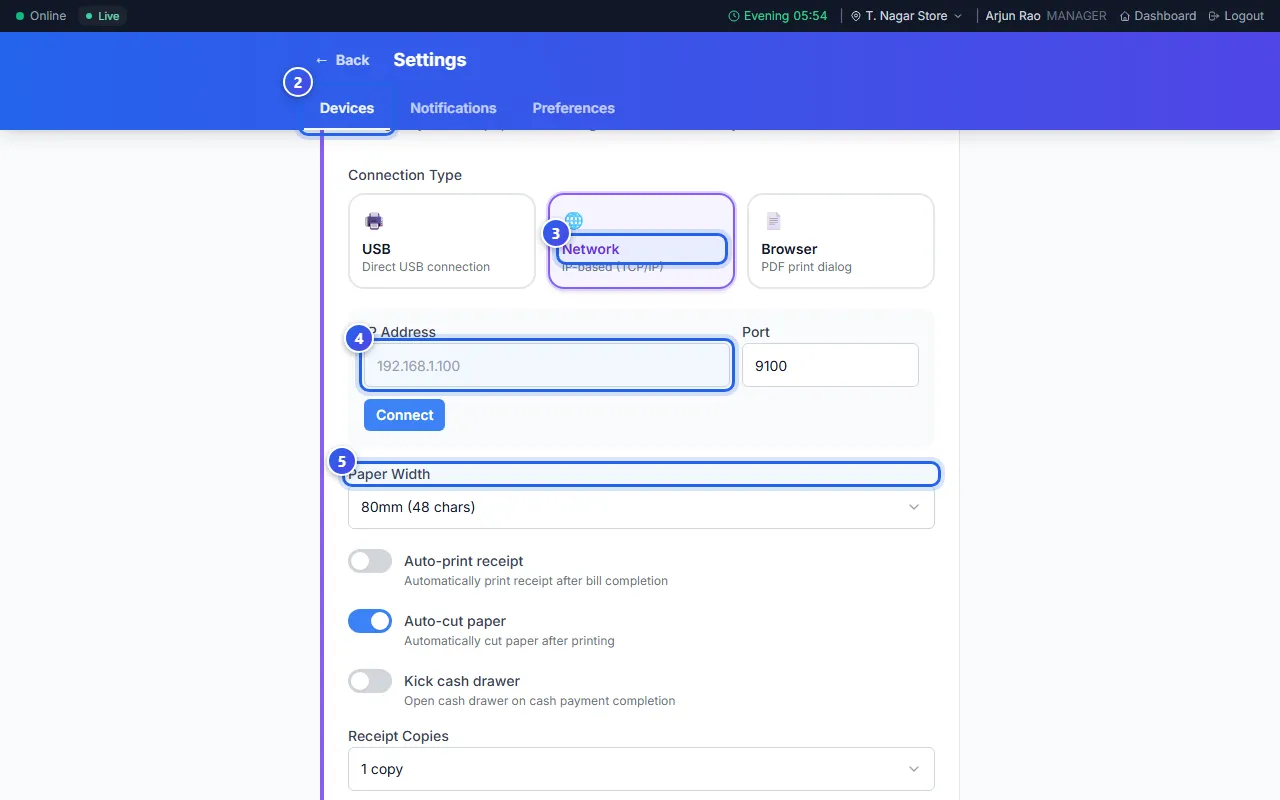
With no receipt printer, choose Browser. Then each receipt opens as a PDF in your web browser, and you print it from there.
Changes save at once. More choices for a receipt printer:
- Auto-print receipt prints the receipt after each bill.
- Kick cash drawer opens the cash drawer after a cash sale.
- Receipt Copies prints 1, 2 or 3 copies.
Choose how the till works
Everyone can do this, on this till only.
- Press the Preferences tab.
- Under Cart panel position, choose Left or Right for the bill.
- Turn on Quick-add quantity to add 1 of an item with one press. When it is off, the app asks how many.
- Choose a Default Payment Method: Cash, UPI or Card.
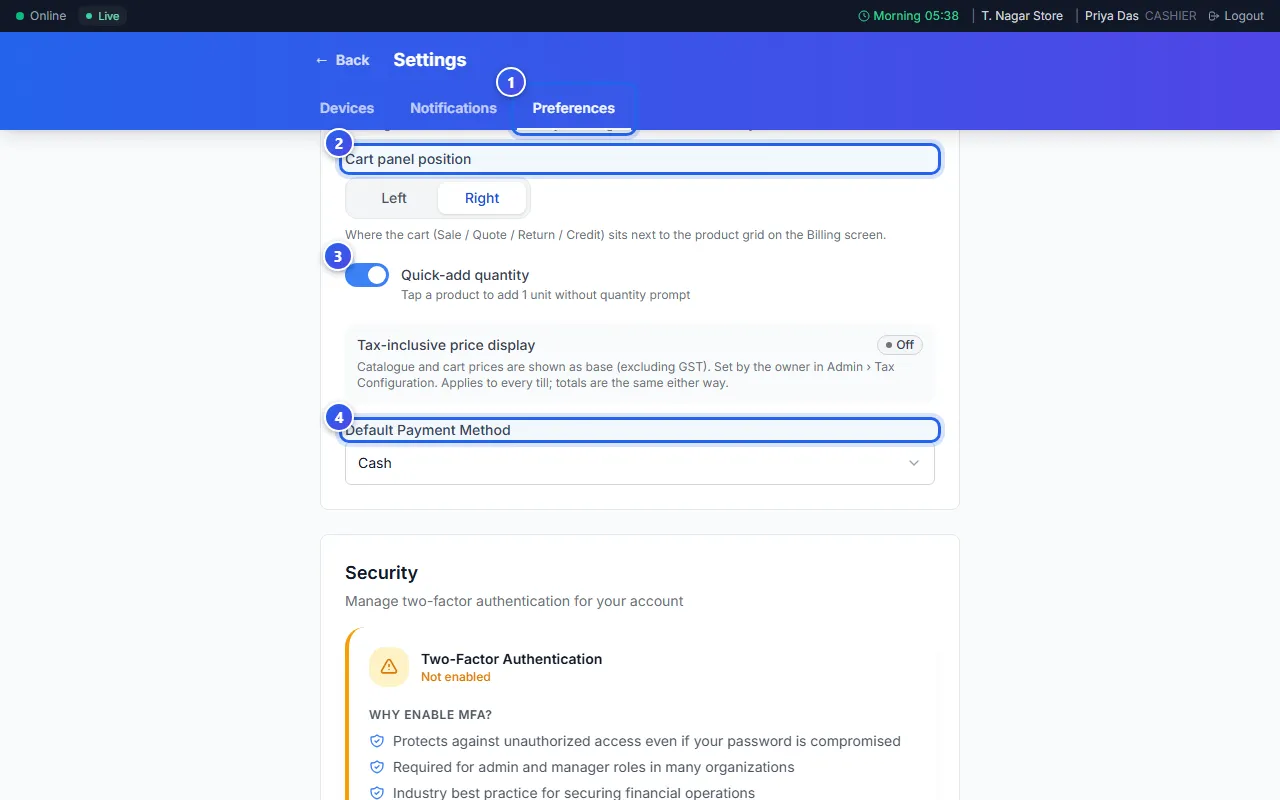
The payment window then opens on the way to pay that you chose.
Related help
Still need help?